Implementing Dynamic Content
This tutorial explores loading content dynamically into your Page Slider at runtime, allowing for greater control and adaptability.
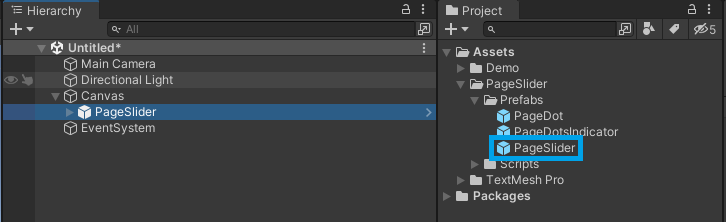
1. Add the Page Slider
- Create a new
CanvasGameObject. - In the Project window, locate the
PageSliderprefab within your project's folder structure:PageSlider/Prefabs/. - Drag the
PageSliderprefab from the Project window and make it a child of theCanvasin the Hierarchy.
2. (Optional) Add Page Dots Indicator
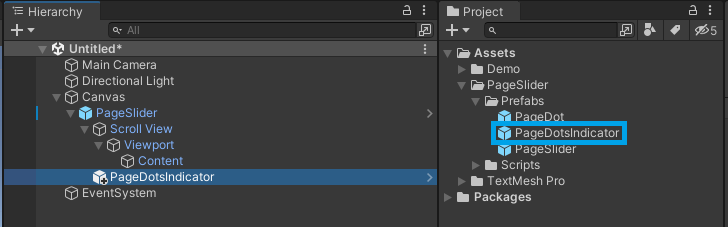
- In the Project window, locate the
PageDotsIndicatorprefab within your project's folder structure:PageSlider/Prefabs/. - Drag the
PageDotsIndicatorprefab and make it a child of thePageSliderin the Hierarchy.
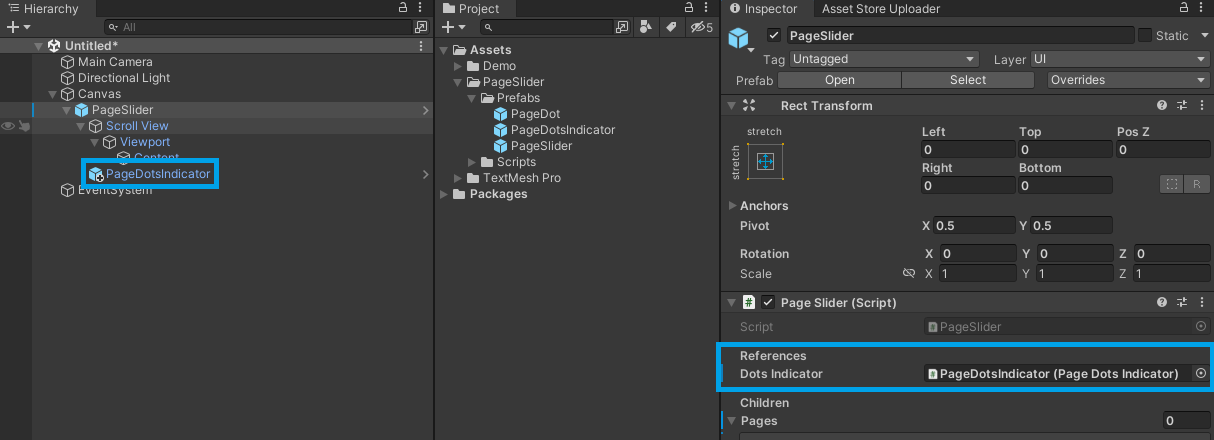
- Select the
PageSliderGameObject. - In the Inspector window, assign the
PageDotsIndicatorto theDots Indicatorfield.
3. Create a Page View
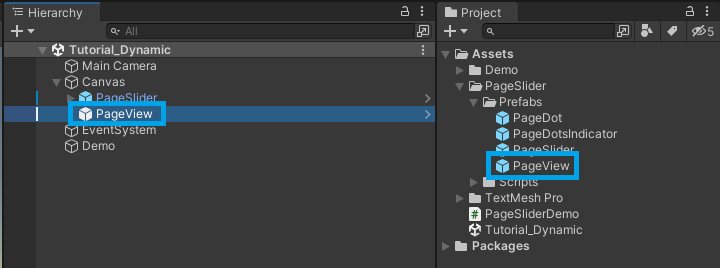
- Select the
CanvasGameObject. - In the Project window, locate the
PageViewprefab within your project's folder structure:PageSlider/Prefabs/. - Drag the
PageViewprefab from the Project window and make it a child of theCanvasin the Hierarchy.
- Add your desired UI elements to configure the
PageViewlayout. In this example, I'm adding a single Label, but the layout can be as complex as you need.
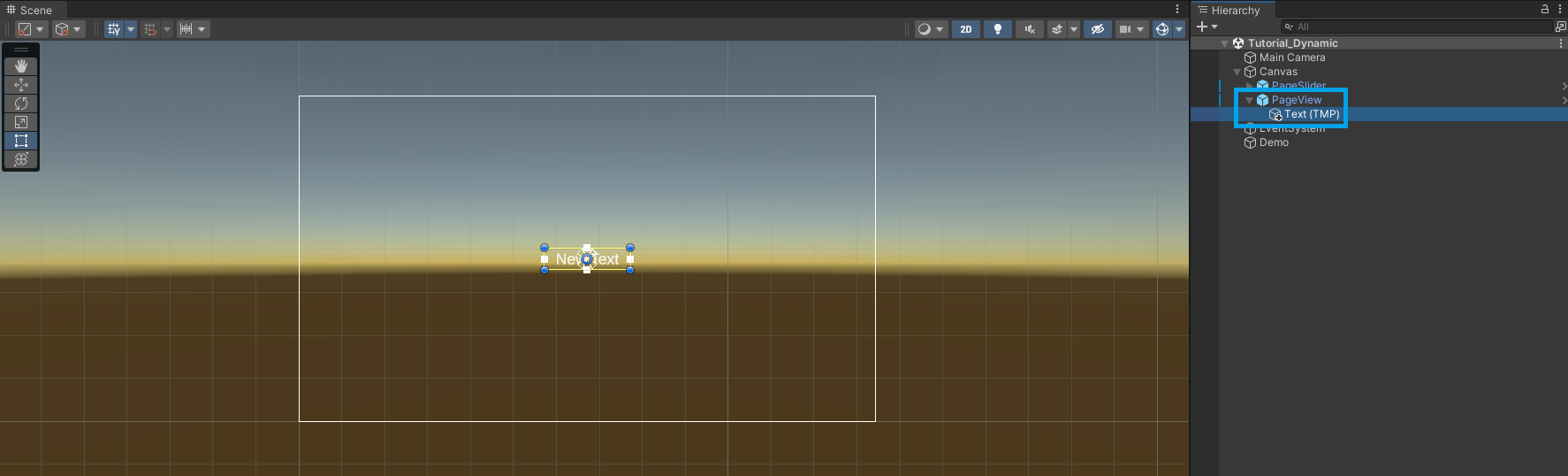
- Create a new prefab for the
PageViewlayout. The Page Slider will instantiate this prefab at runtime to generate each page. - Disable or remove the page layout from the Scene.
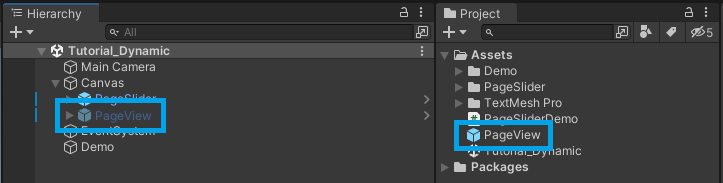
4. Add Pages at runtime
- Create a new C# script (or use an existing one).
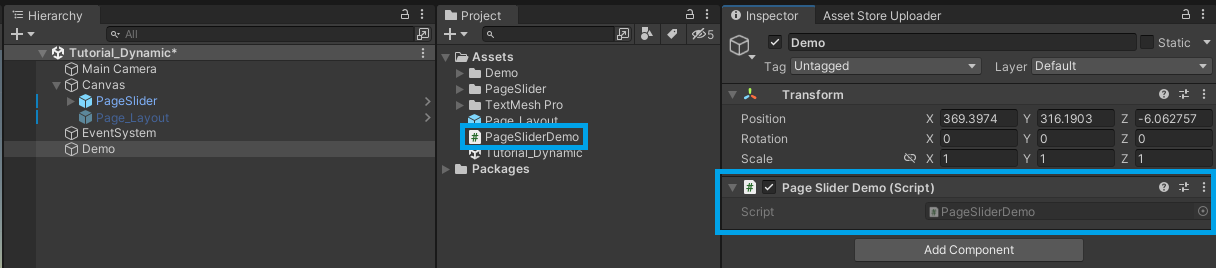
- Create a reference to the
PageSliderand thePageViewprefab. - Instantiate the pages that you want and configure their properties.
- Add the pages to the
PageSliderusing the AddPage method. Please note it accepts aRectTransformcomponent.
using TMPro;
using TS.PageSlider;
using UnityEngine;

public class PageSliderDemo : MonoBehaviour
{
    public PageSlider _pageSlider;
    public PageView _pageView;

    void Start()
    {
        for (int i = 0; i < 3; i++)
        {
            var page = Instantiate(_pageView);
            page.GetComponentInChildren<TextMeshProUGUI>().text = i.ToString();

            _pageSlider.AddPage((RectTransform)page.transform);
        }
    }
}
- Assign the
PageSliderand thePageViewprefab references.
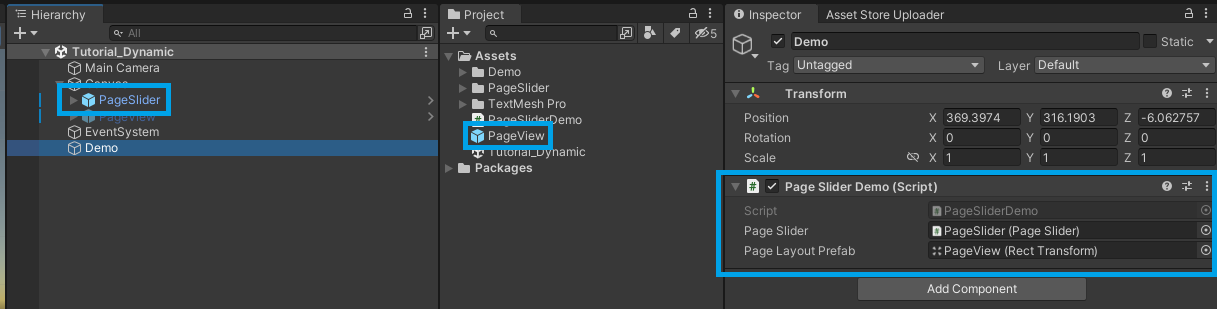
- Run the project and the pages will be added dynamically to the
PageSlider.
Note: For more complex cases you should create a custom class for the page layout. Check the Demo_Dynamic and Demo_Lazy available on the GitHub repository.
Helpful links
- Understand the main concepts by reading the getting started guide
- For a more in-depth explanation, check out this video.
- Explore the API Reference for more details.
- Modify the source code available on GitHub.
- Install directly from the Unity Asset Store.
- Get in touch with me at tomazsaraiva.com.